RK Worlds App Not Working on Android: Fix Crashes, Loading and Connection Errors
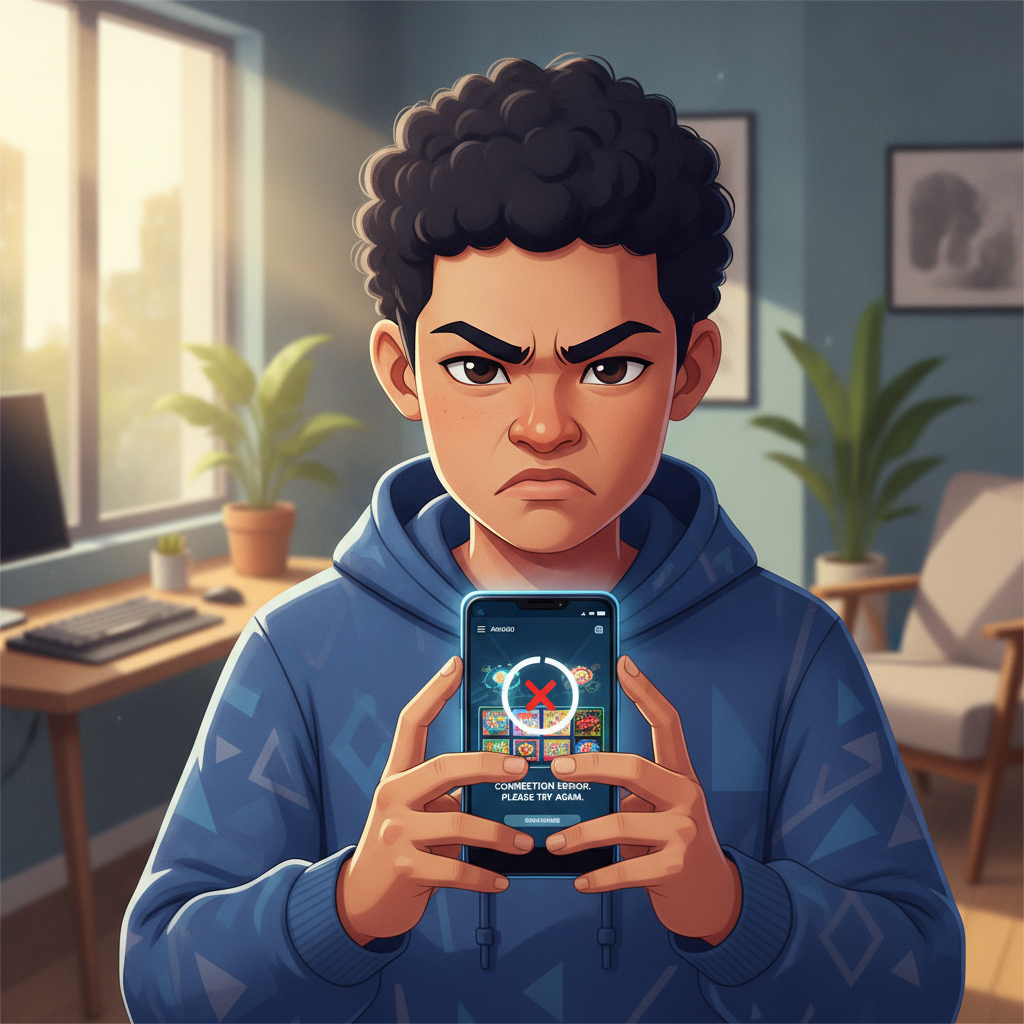
When the RK Worlds app stops responding or crashes on your Android phone, it disrupts your betting and casino play. This guide walks through the most common problems—app crashes on launch, freezing at the loading screen, and "No internet connection" errors—and explains how to fix them step by step.
RK Worlds is an online casino and sportsbook serving players in the Philippines with slots, live dealer tables, sports betting on PBA and NBA, and more. Players aged 21 and over access the platform through the Android APK or mobile browser, making deposits and withdrawals with GCash, Maya, InstaPay, and PESONet.
If you run into technical issues with the RK Worlds app, the solutions below cover cache clearing, APK updates, reinstallation, connection checks, and when to switch to your mobile browser instead.
This content is for players aged 21 and over only. Gamble responsibly and within your means.
Common Issues with the RK Worlds Android App
Most app problems fall into three categories:
App crashes on launch: The RK Worlds icon opens for a second, then closes or returns you to the home screen. You may see a brief error message or none at all.
Stuck on loading screen: The app opens to the RK Worlds logo or splash screen, but progress stops. The loading animation may freeze or loop without reaching the login page.
"No internet connection" or server error: The app loads but displays an error message stating it cannot connect, even when your WiFi or mobile data is active and other apps work fine.
These issues usually stem from outdated APK files, corrupted cache, Android operating system conflicts, or temporary network or server problems.
Clearing Cache and App Data
Android stores temporary files and login tokens in your app cache. Over time, corrupted or outdated cache can cause the RK Worlds app to crash or fail to load.
Clear cache without losing login details:
- Open Settings on your Android phone
- Tap Apps (or Applications)
- Find and select RK Worlds in the list
- Tap Storage
- Tap Clear Cache
This removes temporary files but leaves your login credentials and settings intact. Reopen the app and check if the issue is resolved.
Clear data for a fresh start:
If clearing cache does not help, clearing all data resets the app as if newly installed. You will need to log in again afterward.
- Follow the same steps to Settings > Apps > RK Worlds > Storage
- Tap Clear Data (or Clear Storage)
- Confirm the action
- Reopen the app and log in with your RK Worlds username and password
Clearing data often fixes persistent crashes and loading loops.
Updating the RK Worlds APK
RK Worlds releases updated APK versions to fix bugs, improve compatibility with newer Android versions, and address security patches. Running an outdated APK can cause connection errors or crashes.
Check if a new version is available:
- Visit the official RK Worlds site using your mobile browser (Chrome or Firefox)
- Navigate to the App Download or Mobile section
- Compare the version number listed on the site to the version installed on your phone
You can find your installed version by going to Settings > Apps > RK Worlds and looking at the app details.
Download and install the latest APK:
- If a newer version exists, tap the download link on the RK Worlds site
- Your browser will download the APK file (usually saved to Downloads)
- Open the APK file from your notification bar or file manager
- Android may prompt you to allow installation from unknown sources—tap Settings and enable the toggle for your browser
- Tap Install and wait for the process to complete
- Open the updated app and log in
Always download APK files directly from the official RK Worlds website to avoid malware or fake apps.
Reinstalling the RK Worlds App
If clearing cache and updating the APK do not resolve the issue, a full reinstall can eliminate corrupted files or incomplete installations.
Uninstall the app:
- Long-press the RK Worlds app icon on your home screen
- Drag it to Uninstall or tap the info icon and select Uninstall
- Confirm the action
Alternatively, go to Settings > Apps > RK Worlds > Uninstall.
Download and install a fresh copy:
- Open your mobile browser and visit the official RK Worlds site
- Download the APK as described in the previous section
- Install the APK and open the app
- Log in with your account credentials
Reinstalling often fixes issues caused by incomplete updates or file corruption during the original installation.
Checking Your Mobile Data or WiFi Connection
Connection errors may appear even when your phone shows an active network. The problem could be weak signal, restricted background data, or network congestion.
Test your connection:
- Open your browser and load a website (such as Google) to confirm internet access
- Try opening another app that requires internet, such as Facebook or YouTube
- If other apps load slowly or fail, the issue is with your connection, not the RK Worlds app
Switch between mobile data and WiFi:
- If you are on mobile data, try connecting to a WiFi network
- If you are on WiFi, turn it off and use mobile data (3G, 4G, or 5G)
Switching networks can bypass temporary routing or DNS issues.
Check background data restrictions:
Android may restrict background data for some apps to save battery or data usage. If the RK Worlds app cannot connect in the background, it may display connection errors.
- Go to Settings > Apps > RK Worlds
- Tap Mobile Data or Data Usage
- Ensure Background Data is enabled
- Repeat for WiFi if the option appears
Reset network settings:
If connection errors persist across multiple networks, reset your phone's network settings:
- Open Settings > System > Reset Options
- Tap Reset WiFi, Mobile & Bluetooth
- Confirm and restart your phone
This clears saved networks and Bluetooth pairings, so you will need to reconnect to WiFi afterward.
Checking RK Worlds Server Status
Occasionally, the RK Worlds platform experiences scheduled maintenance or unexpected downtime. During these periods, the app may fail to load or display server error messages.
How to check for maintenance or outages:
- Visit the official RK Worlds site using your mobile browser. If the site loads normally, the server is usually up
- Check the RK Worlds social media pages (if available) or community groups for announcements
- Try logging in through the mobile browser version instead of the app. If the browser version works, the issue is app-specific
If RK Worlds is undergoing maintenance, wait until the scheduled period ends. The platform typically restores service within a few hours.
When to Switch to the Mobile Browser Instead of the App
If you have tried all troubleshooting steps and the RK Worlds app still crashes or fails to connect, use the mobile browser as a temporary or permanent alternative.
Access RK Worlds through your browser:
- Open Chrome, Firefox, or your preferred browser on Android
- Type the official RK Worlds URL into the address bar
- Bookmark the page for quick access
- Log in with your account credentials
The mobile browser version offers the same features as the app: slots, live dealer games, sports betting on PBA and NBA, deposits with GCash and Maya, and withdrawals via InstaPay and PESONet.
Advantages of the browser version:
- No need to download or update APK files
- Works on any Android version and phone model
- Bypasses app-specific bugs and compatibility issues
- Saves storage space on your device
When the browser is a better choice:
- Your phone runs an older Android version incompatible with the latest APK
- Storage space is limited
- Repeated app crashes occur even after reinstalling
- You prefer not to enable installation from unknown sources
The browser experience is optimized for mobile, so most players find little difference in usability.
Tips to Prevent Future App Issues
- Update your APK regularly: Check the RK Worlds site every few weeks for new versions
- Clear cache monthly: Prevents buildup of corrupted temporary files
- Keep Android OS updated: System updates improve app compatibility and security
- Monitor storage space: Low storage can cause apps to crash. Delete unused apps or media files
- Use a stable internet connection: Avoid betting or withdrawing funds over weak or unstable networks
Final Troubleshooting Checklist
If the RK Worlds app still does not work after following this guide:
- Restart your Android phone
- Ensure your phone meets the minimum system requirements (usually Android 5.0 or higher)
- Disable battery optimization for the RK Worlds app (found in Settings > Battery > Battery Optimization)
- Contact RK Worlds customer support through the official site or live chat for device-specific help
Remember that connection and login issues can also occur if your account is under review or temporarily restricted. Check your email or SMS for messages from RK Worlds.
Responsible Gambling Reminder
RK Worlds is for players aged 21 and over in the Philippines. Gamble only with money you can afford to lose. Set deposit limits, take breaks, and seek help if gambling becomes a problem. Apps and platforms are tools for entertainment—use them responsibly.